
October 27, 2026 · 7 min read
Amazon infographic images: what to include, sizes and examples
The main image gets the click. The infographics in slots 2 to 7 answer the questions that decide whether shoppers buy. What to put on each one, the size and text rules, and how to make them readable on a phone.
By Smit Golakiya · Founder, BrandShots
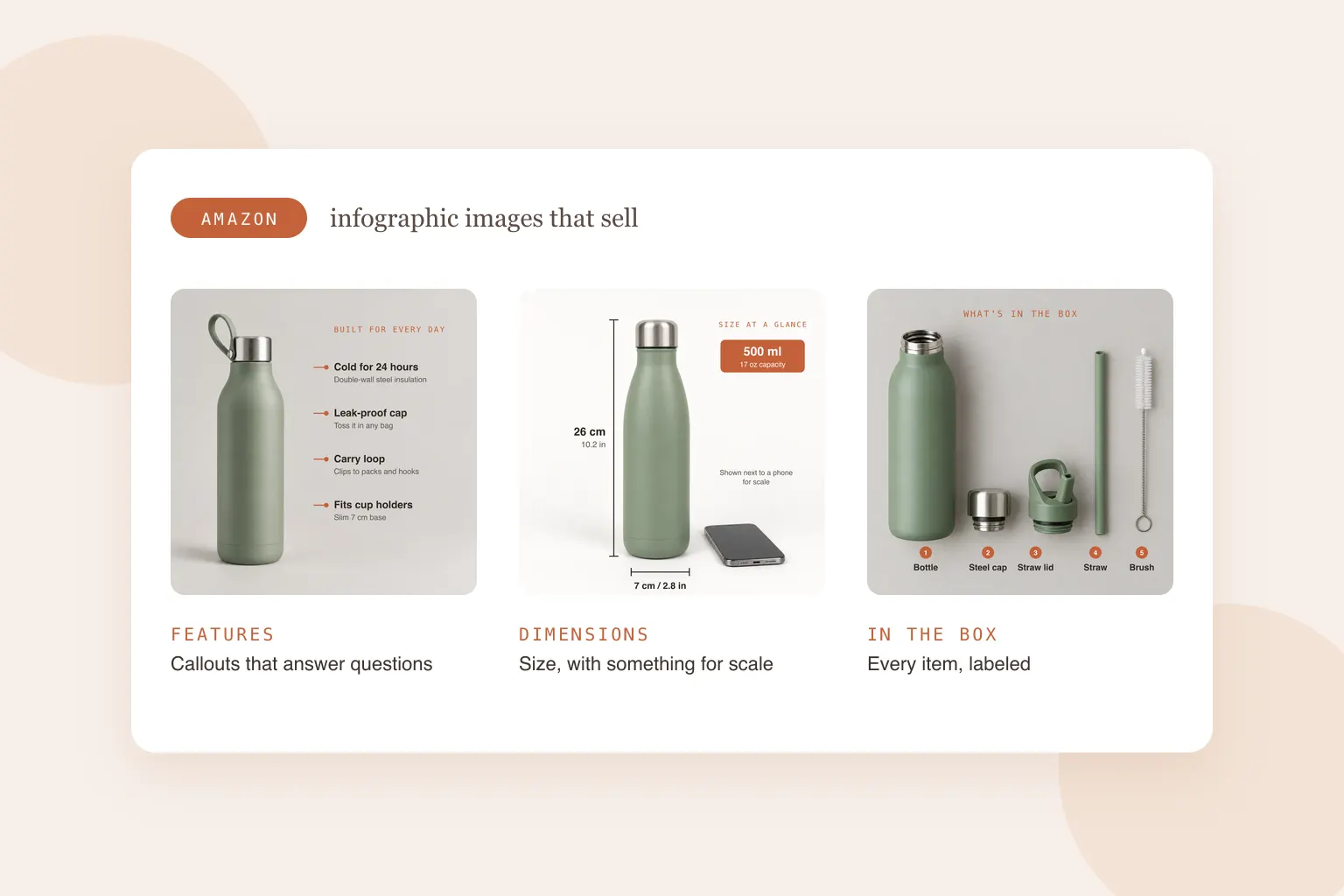
Short answer: Amazon infographics are the secondary listing images (slots 2 onward) that combine a product photo with short text callouts: key features, dimensions, materials, how to use it or what's in the box. Text is allowed on these images but never on the main image. Make them square at about 2000 x 2000 pixels (at least 1,000 pixels on the longest side for zoom), use 3 to 5 short callouts per image, and check that the text is readable on a phone before you upload. Leave out prices, promotions, Amazon badges and claims you can't prove.
Most shoppers decide from the image gallery, not the bullet points, and most of them are on a phone. An infographic puts the answer to their question next to the product, at a size they can read without zooming.
Infographic vs main image: the rules
- Item
- Background
- Main image (slot 1)
- Pure white (RGB 255, 255, 255)
- Infographic (slots 2 onward)
- Any
- Item
- Text and graphics
- Main image (slot 1)
- Not allowed
- Infographic (slots 2 onward)
- Allowed
- Item
- Logos, borders, watermarks
- Main image (slot 1)
- Not allowed
- Infographic (slots 2 onward)
- Your brand logo is fine; no watermarks
- Item
- Product fill
- Main image (slot 1)
- About 85% of the frame
- Infographic (slots 2 onward)
- Leave room for callouts
- Item
- Purpose
- Main image (slot 1)
- Get the click in search
- Infographic (slots 2 onward)
- Answer questions and close the sale
For the full main image rules, see Amazon product image requirements.
Amazon infographic size
- Recommended: 2000 x 2000 pixels, square (1:1). Amazon doesn't require square, but non-square images get padded, which makes the product look smaller.
- Minimum: 1,000 pixels on the longest side, so zoom works. 1,600 pixels or more gives the best zoom.
- Allowed range: 500 to 10,000 pixels on the longest side.
- Formats: JPEG (preferred), PNG, TIFF or non-animated GIF.
- Number of images: Amazon recommends at least six. You can upload more than will show at once, and how many display depends on the device and whether the listing has a video.
Design at 2000 x 2000 even though most shoppers see it far smaller. On a phone, the gallery shows each image only about 360 pixels wide, which is why text size matters so much.
What to put on Amazon infographics: 7 types
A strong gallery uses a few of these, each answering one question.
1. Key features
Three to five benefits, each with a short callout pointing to the part of the product it's about. Lead with what the shopper gets ("Leak-proof lid"), not the spec ("Silicone gasket").
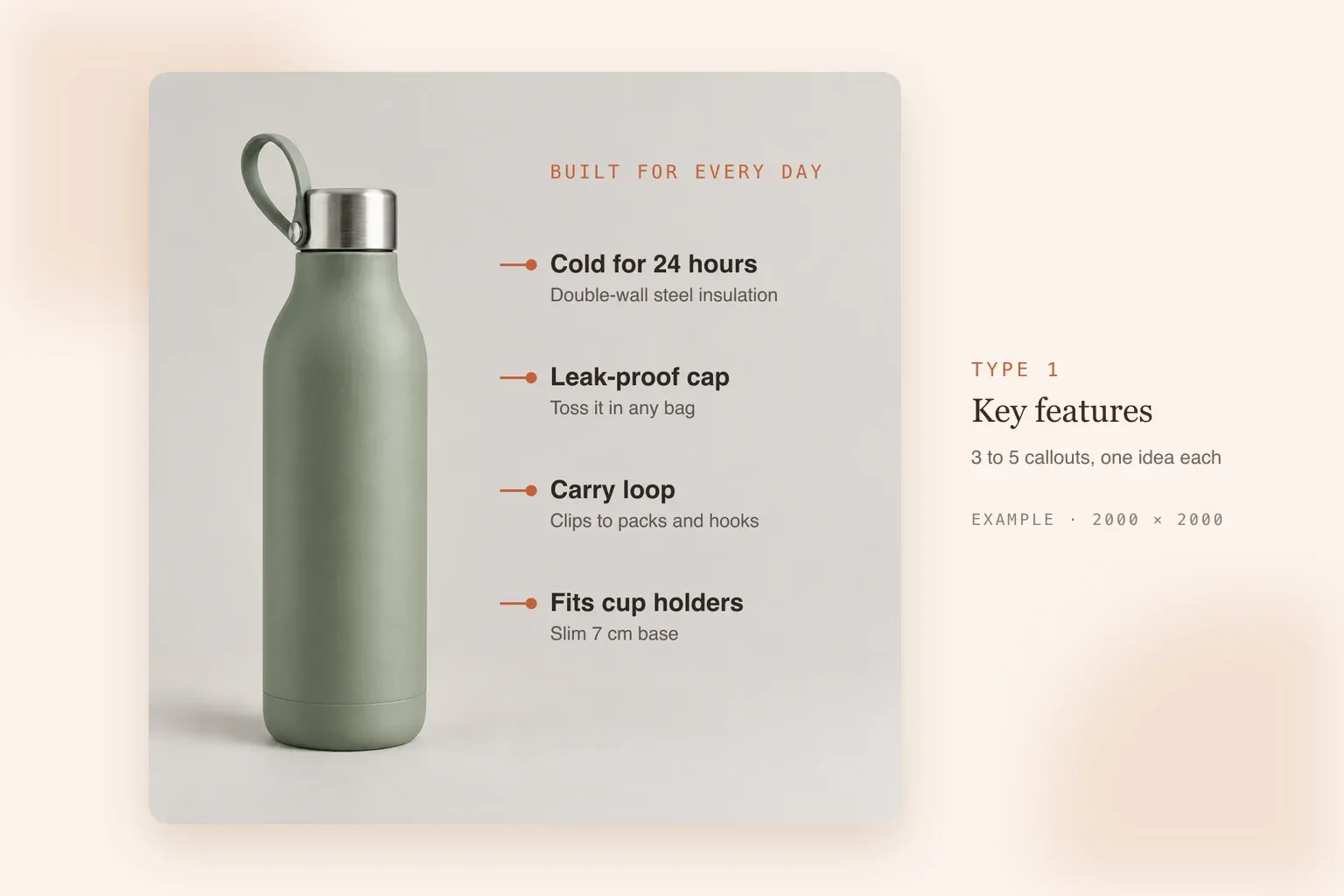
2. Dimensions and scale
Measurements marked on the product, plus a familiar object or a hand for scale. This answers "how big is it?" and prevents returns.
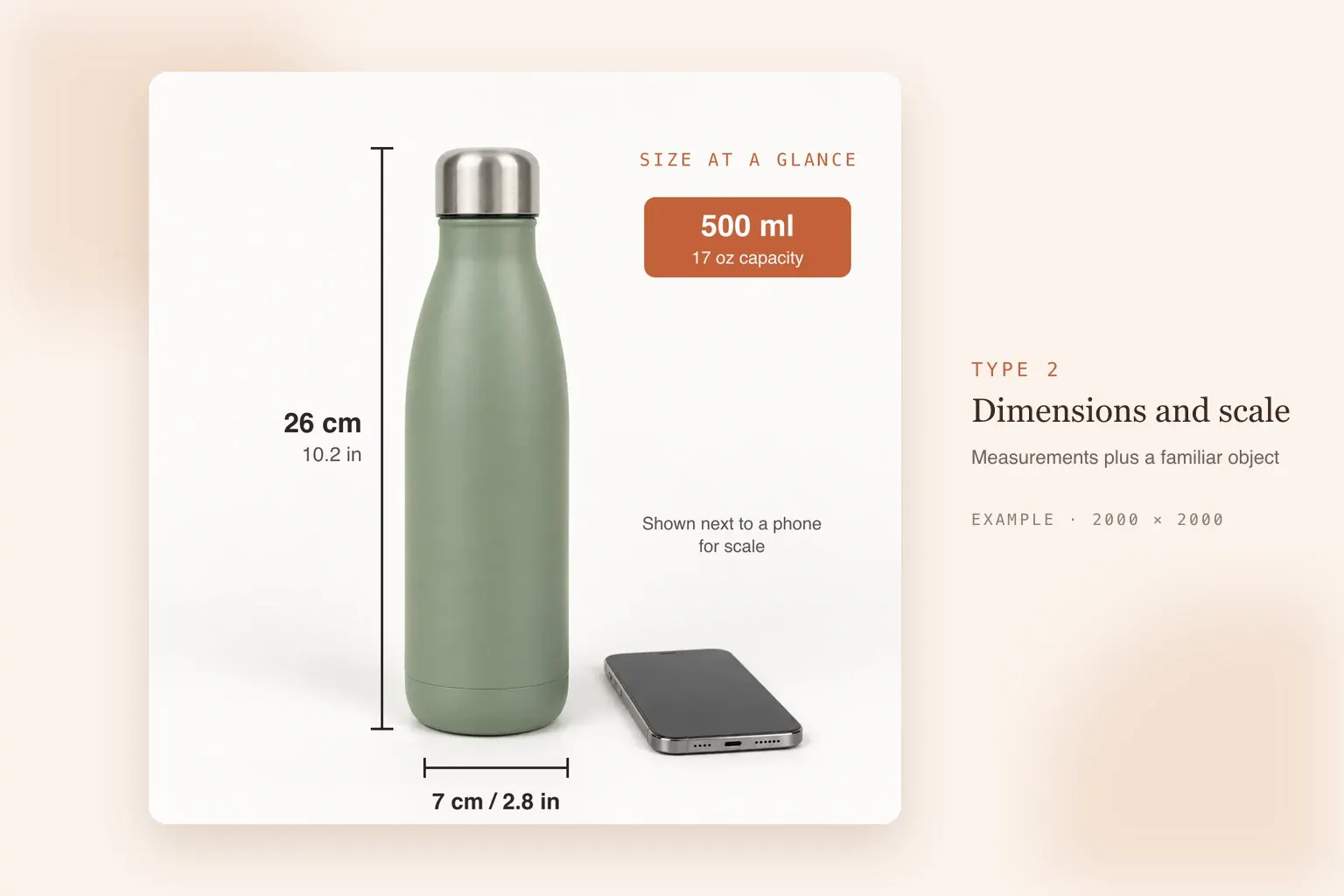
3. What's in the box
Everything the buyer receives, laid out and labeled. It stops "missing parts" complaints before they happen.
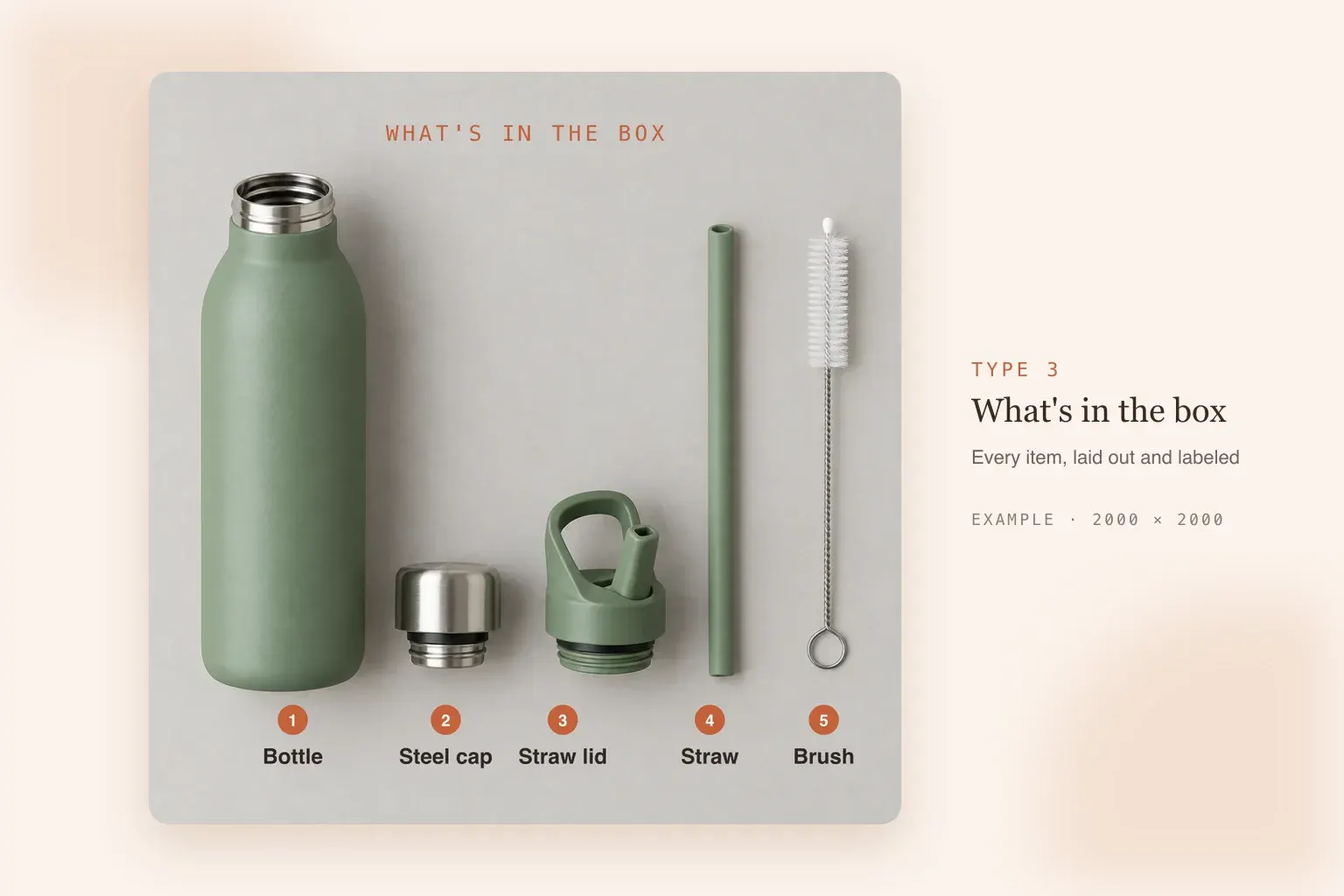
4. How to use it
Three or four numbered steps, each with a small photo. Works well for anything with assembly, refills or a learning curve.
5. Materials or ingredients
Close-ups of the material, fabric or key ingredients, with one line about each. Best for skincare, food, apparel and furniture.
6. Comparison
Your product against your own other sizes or models, side by side. Compare only your own products. Naming competitors is a common reason for rejected images.
7. Lifestyle with one line of text
The product in use, with a single short headline. It sells the feeling while still carrying a message. For scene ideas, see our lifestyle product photography guide.
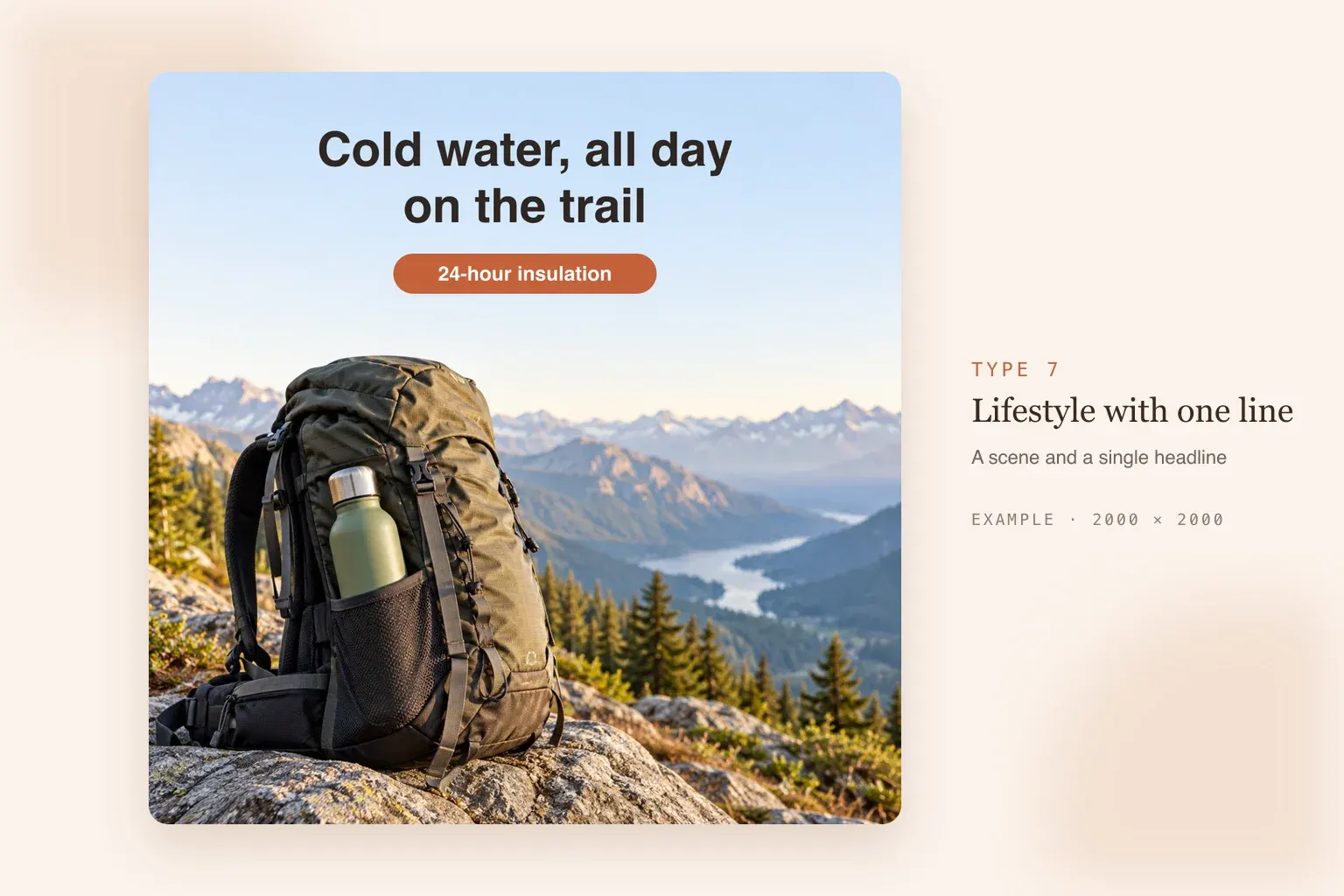
A common order after the main image: main benefit, features, dimensions, how it works, lifestyle, comparison, what's in the box.
What's not allowed on Amazon infographics
- Prices, discounts and promotions: "50% off", "sale", "limited time"
- Amazon badges or lookalikes: "Amazon's Choice", "Best Seller", "#1"
- Amazon logos and trademarks: Amazon, Prime, Alexa or the smile logo
- Claims you can't back up: health claims, "clinically proven", certifications you can't show proof of
- Competitor names or logos
- URLs, QR codes and contact details
- Watermarks
Some categories have stricter rules, and a few Amazon pages are stricter about text than others. Check the style guide for your category in Seller Central before you upload a full set.
Make the text readable on a phone
Most Amazon shoppers browse on a phone, where your 2000-pixel image shows at about 360 pixels wide. That's a 5x reduction. These rules keep it readable:
- One message per image. If you need two headlines, you need two images.
- 3 to 5 callouts at most, each a few words long.
- Big text. Make headline letters at least about 5% of the image height and callouts about 3.5%.
- High contrast. Dark text on light, or white text on a solid or blurred panel. Never text straight on a busy photo.
- A simple sans-serif font, with plenty of space around each callout.
- The same style on every image: one font, your brand colors, the same layout.
- Check it at phone size before you upload. Shrink it to about 375 pixels wide. If you can't read it, neither can shoppers.
How to make Amazon infographics
- Start with a clean product photo on a plain background. Our white background guide covers the setup.
- List the questions shoppers ask. Check your reviews, questions and returns for what people want to know.
- Pick one question per image and choose the infographic type that answers it.
- Design at 2000 x 2000 pixels in Canva, Figma or Photoshop, using your brand fonts and colors.
- Export as JPEG in sRGB, and check every image at phone size.
- Test. Amazon's Manage Your Experiments lets brand-registered sellers A/B test images and see which converts better.
With BrandShots, you upload one product photo and choose the Infographic category. Your brand kit's logo and colors are applied automatically, and you can describe the callouts you want in the notes. Always check every claim and measurement before you upload, because the text on the image has to be accurate.
Infographics also work in your A+ Content, the section below the bullet points. See Amazon A+ Content image sizes for module dimensions.
Can you put text on Amazon images?
Yes, on every image except the main one. The main image must show the product on pure white with no text, logos or graphics. Secondary images can include text callouts, graphics and your brand logo.
What size should Amazon infographics be?
2000 x 2000 pixels, square. Anything from 1,000 pixels on the longest side enables zoom, and Amazon accepts up to 10,000 pixels.
How many images can an Amazon listing have?
Amazon recommends at least six images. You can upload more than that, but only some show at once in the gallery, depending on the device and whether the listing has a video. Put your most important infographics first.
Can I put "Best Seller" on my Amazon images?
No. Amazon badges and lookalikes such as "Best Seller", "Amazon's Choice" or "#1" aren't allowed in listing images, even if your product earned the badge.
Do infographics increase Amazon sales?
They help shoppers find answers faster, which is why most top listings use them. There's no independent study that puts a reliable number on it, so test your own: Manage Your Experiments shows whether a new image set converts better for your product.
Common mistakes
- Text on the main image. It's the fastest way to get a listing suppressed.
- Too much text. A wall of words is unreadable on a phone. Split it into two images.
- Tiny callouts. If you can't read it at 375 pixels wide, shoppers can't either.
- Claims you can't prove. "Clinically proven" and certifications need proof.
- A different style on every image. Use one font, one color palette and one layout.
- Repeating the bullet points. Show what words can't: scale, steps, materials and what's in the box.